


Registration Help
Contents
Download and Installation
Online registration
Offline registration
Registration help for mobile devices (Android, iOS)
Key request via email
Registering all users on the same computer
Troubleshooting / Q&A
Download and Installation
Make sure you are using the latest version. If not - download and install the latest version of our products from our web site.
 Windows: Run *.exe file and follow the installation instructions.
 Mac OS X: Run *.dmg file and drag the icons onto the Applications folder icon.
Online registration
Online registration procedure is very similar for all of our products, both for Windows and Mac OS X. However, here is the general algorithm:
1. Go to main menu\Help\Register online...
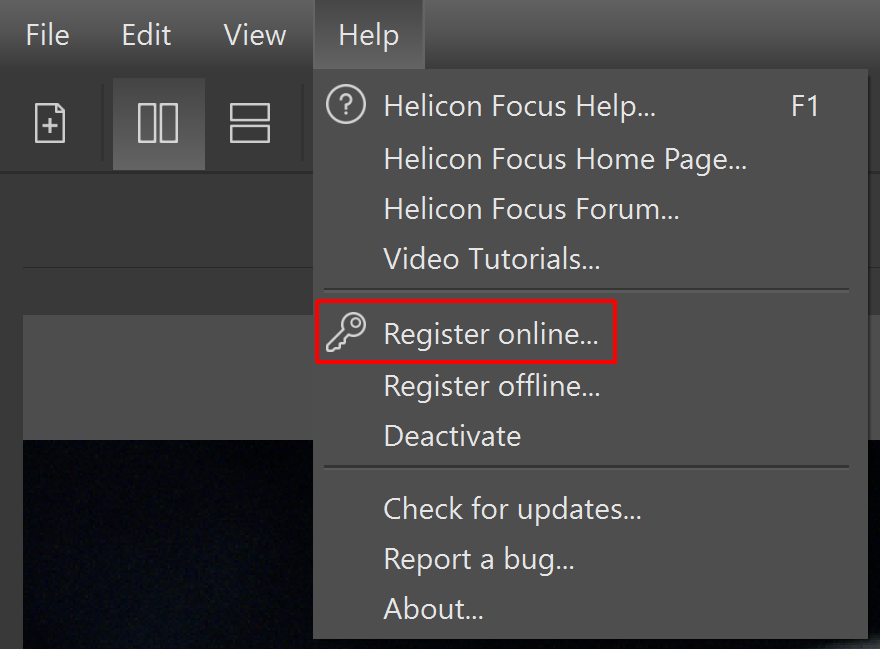
2. Enter the activation code you received in the purchase notification email and press the 'Register' button.
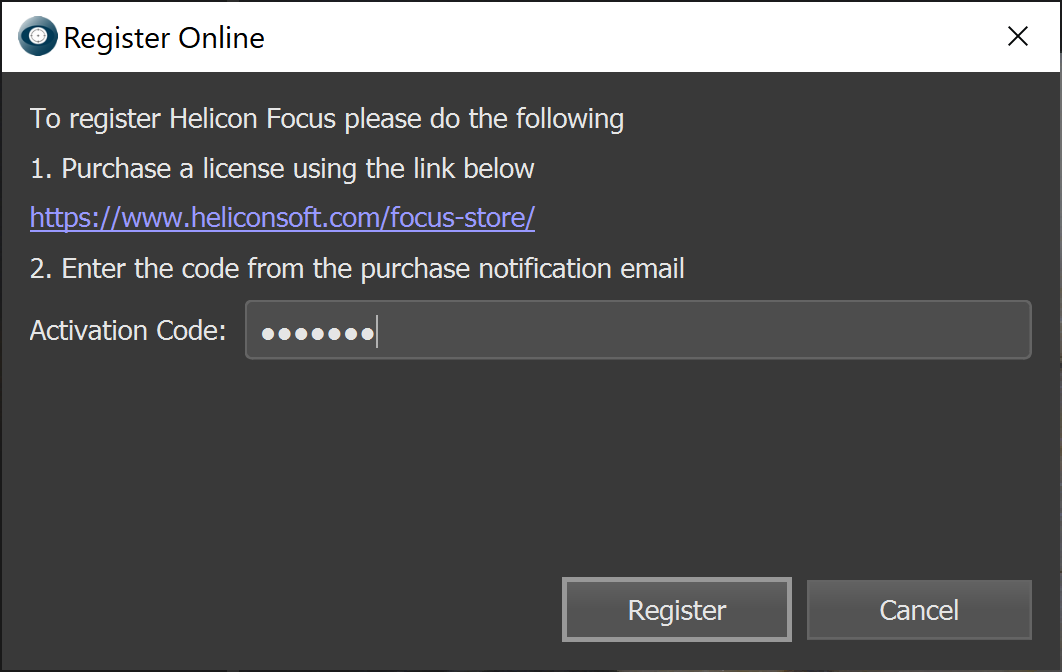
Online registration with activation code requires internet connection and does not work for offline computers.
Offline registration
Online registration is a much more simple process, so we would recommend you to find a a way to connect to Internet. If it's not possible, please follow these instructions for offline registration:
1. Open Offline registration dialog (main menu\Help\Register offline...):
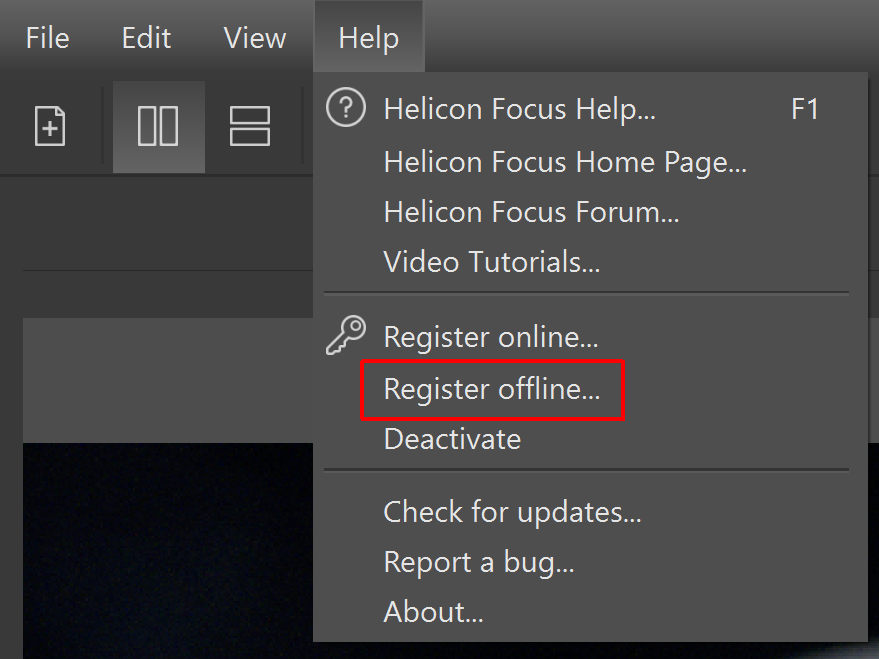
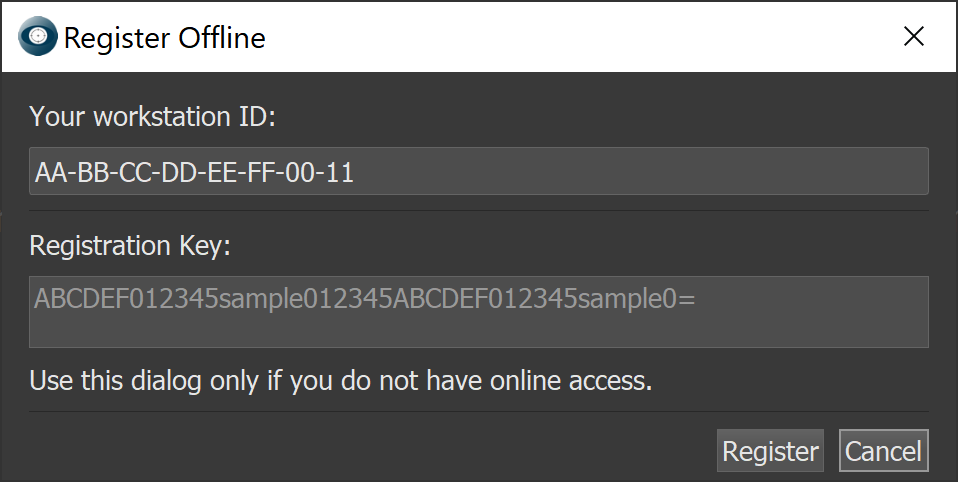
2. Save your Workstation ID to text file on USB flash drive or other storage device.
3. Login to our support system - Helicon Help Desk - from any other computer connected to internet (https://www.heliconsoft.com/support/login.php)
4. Enter the activation code you received in the purchase notification email to log in (not Workstation ID!).

If you do not remember your activation code, please use Forgot activation code? link.
If you do not remember your email, please send message to [email protected].
When logged into the system, you can write a message to our support team, generate keys for your computers or make changes to your profile.
5. Go to the Keys tab

6. Select the license you have.
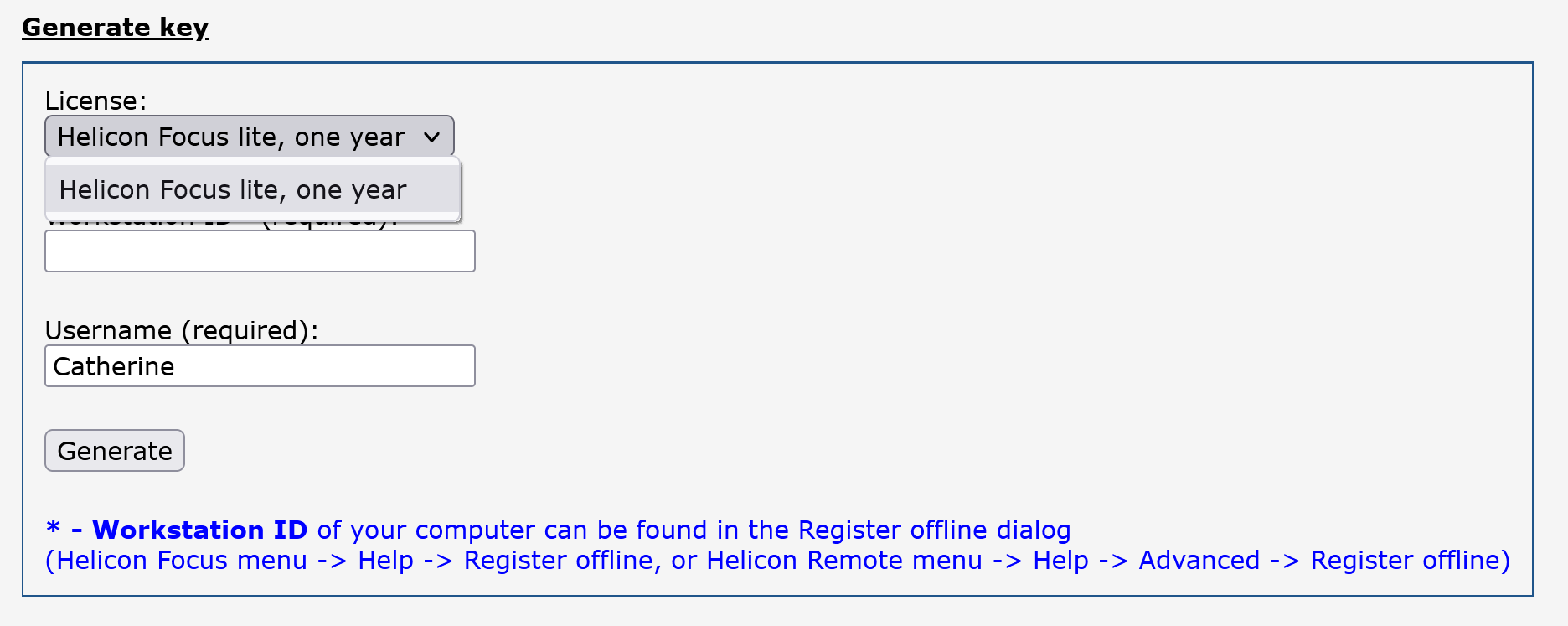
7. Enter the Workstation ID that you've saved before from the Register offline dialogue.
8. Press the 'Generate' button to generate the key.
9. Save the key as a text file and transfer it to your offline computer.
10. Paste the key to the Offline registration dialog of the program.

Key request via email
If for one reason or another you fail to activate the program online and to generate the key manually in the Help Desk, please send a request to our support team to assist.
Registering all users on the same computer
Windows: You can activate the program once and then create keys.ini file in the same folder where Helicon Focus.exe is located. The file should have the following syntax:
key=Ixn/QLxPpziS+PK/Sam4nOaY422eUQhL8OeRfm0vVlM=
The key for your computer you will find in the Helicon Help Desk, in the Keys section.
With this method, all users on computer will use key from this file.
Mac OS: You can activate the program once and then create keys.ini file in /Library/Application Support/Helicon/ directory. The file should have the following syntax:
key=Ixn/QLxPpziS+PK/Sam4nOaY422eUQhL8OeRfm0vVlM=
The key for your computer you will find in the Helicon Help Desk, in the Keys section.
With this method, all users on computer will use key from this file.
Troubleshooting / Q&A
Q: What is activation code?
All our customers are registered in the online Helicon Help Desk. Each customer is given a unique activation code. When you enter the activation code to the registration dialog of Helicon Soft products, the program automatically sends a request to the data base and receives the registration key for this computer.
Q: What is Workstation ID and where it can be found?
Helicon products use hardware dependent keys in order to avoid publishing of keys in the open access on the internet. Workstation ID is a unique identifier of the computer
hardware. To manually generate the key you need to know your Workstation ID. It
can be found in offline registration dialog.
Q: My program becomes unregistered. Why?
Most probably you've made hardware update or changed partitions on your hard drive. Do not worry, use your activation code to register the program again.