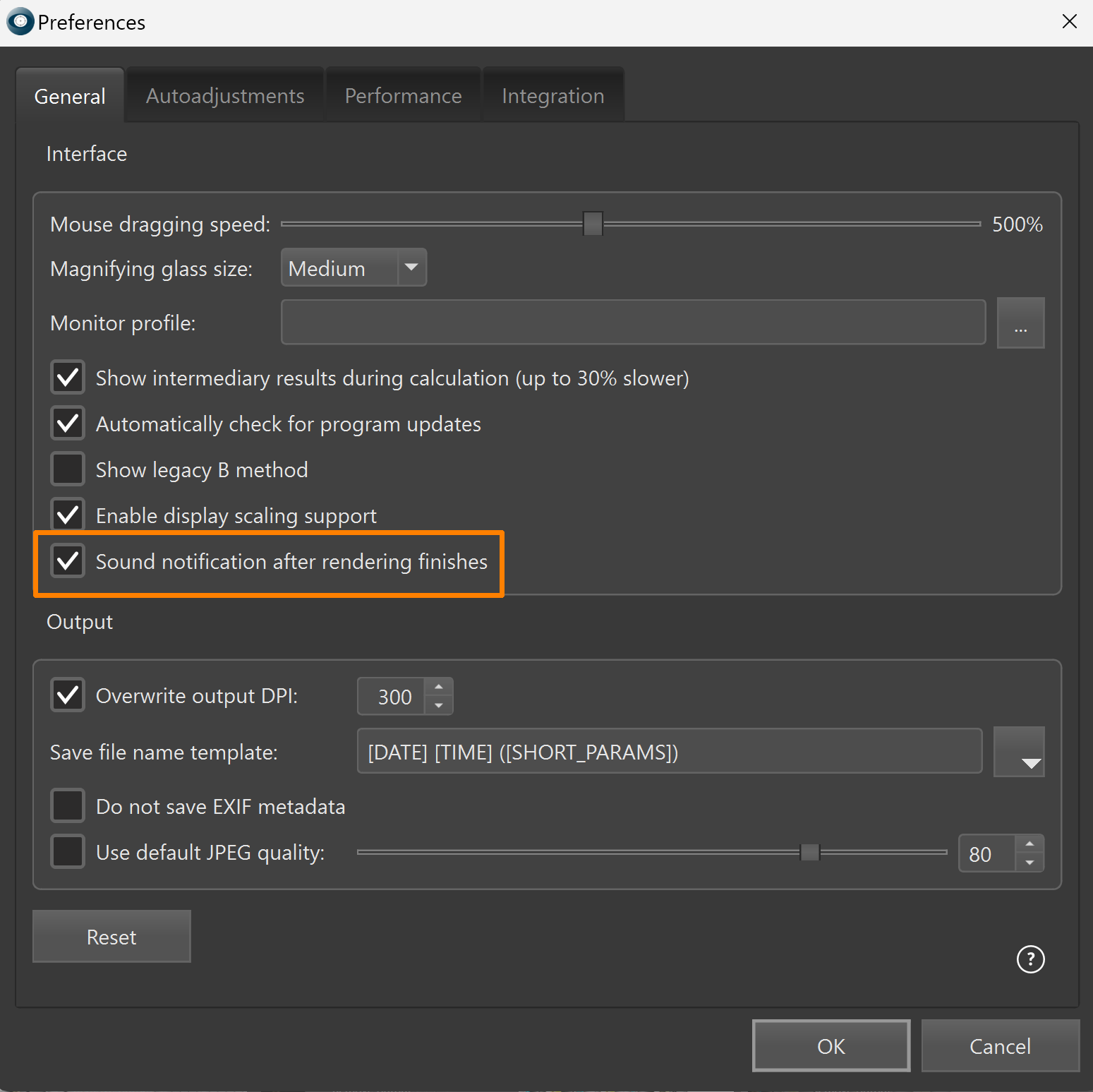
HELICON FOCUS 9 Beta
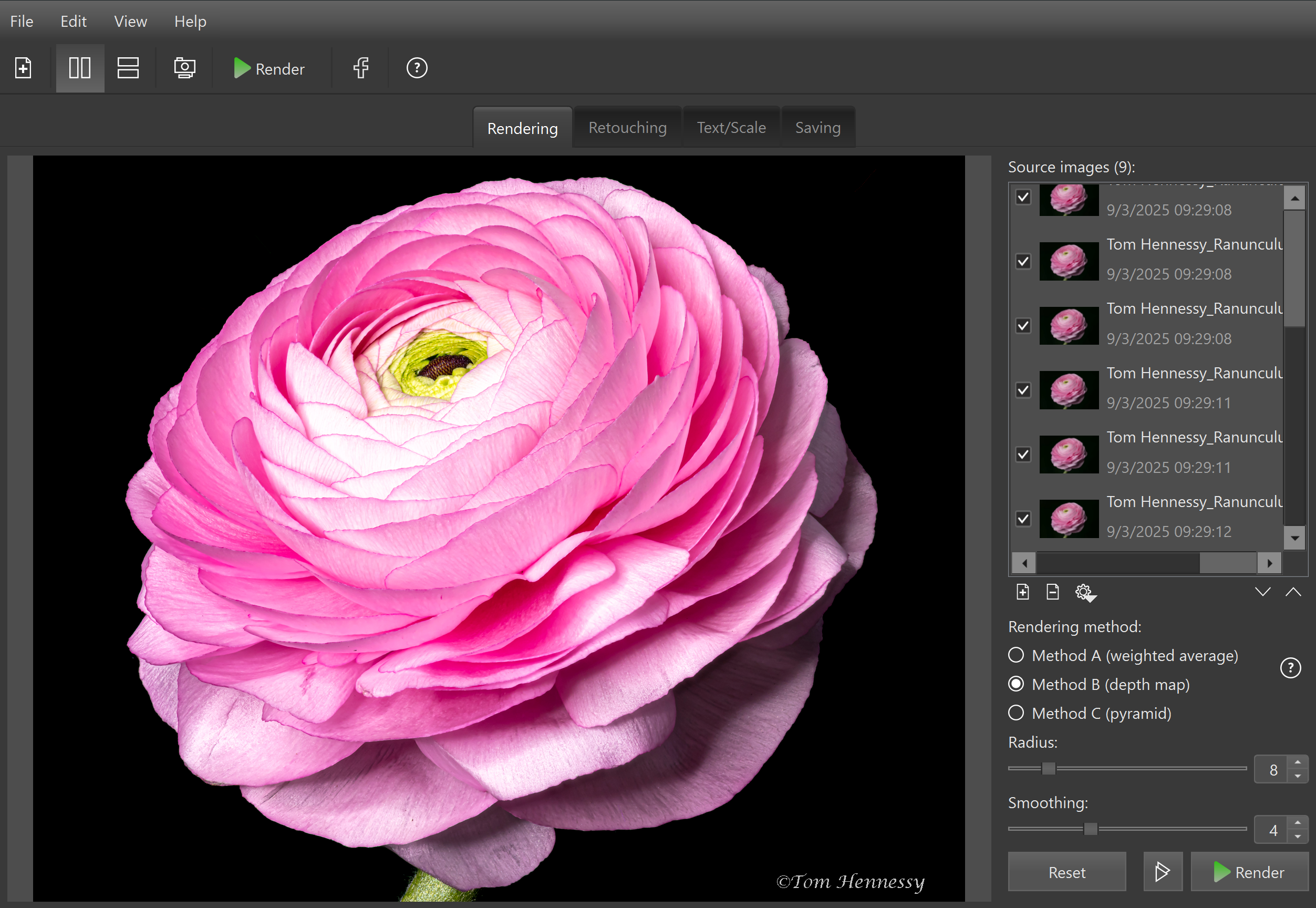
Image copyright © Tom Hennessy
Features and Improvements
Preview Mode Enhancements
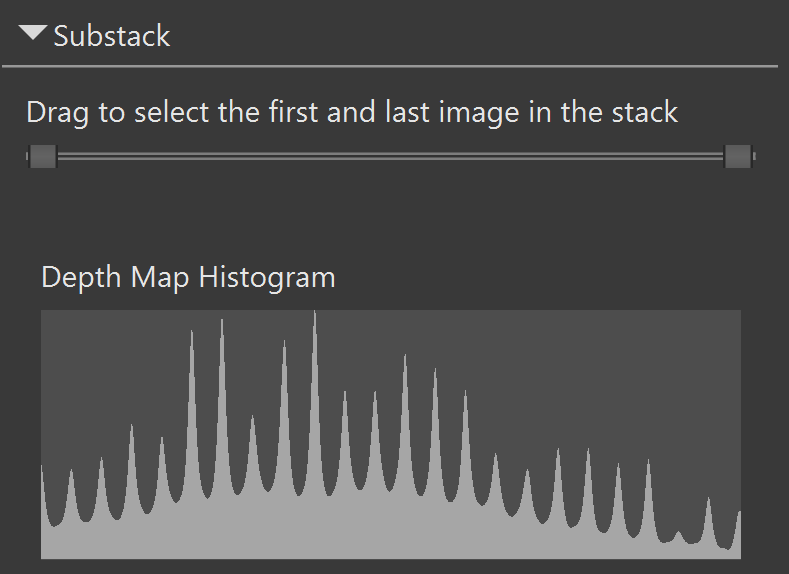
A substack can now be selected directly within the Preview window.
This allows isolating a portion of the stack for rendering, or excluding the frames that contain no focus information at the beginning or at the end of the stack.
 Depth Map Histogram
The Depth Map Histogram visualizes the distribution of focus data and helps identify out-of-focus images.
The histogram is updated automatically when the substack slider is adjusted.
EnqueueStacks and substacks can now be added to the render queue directly from the Preview window without closing it.
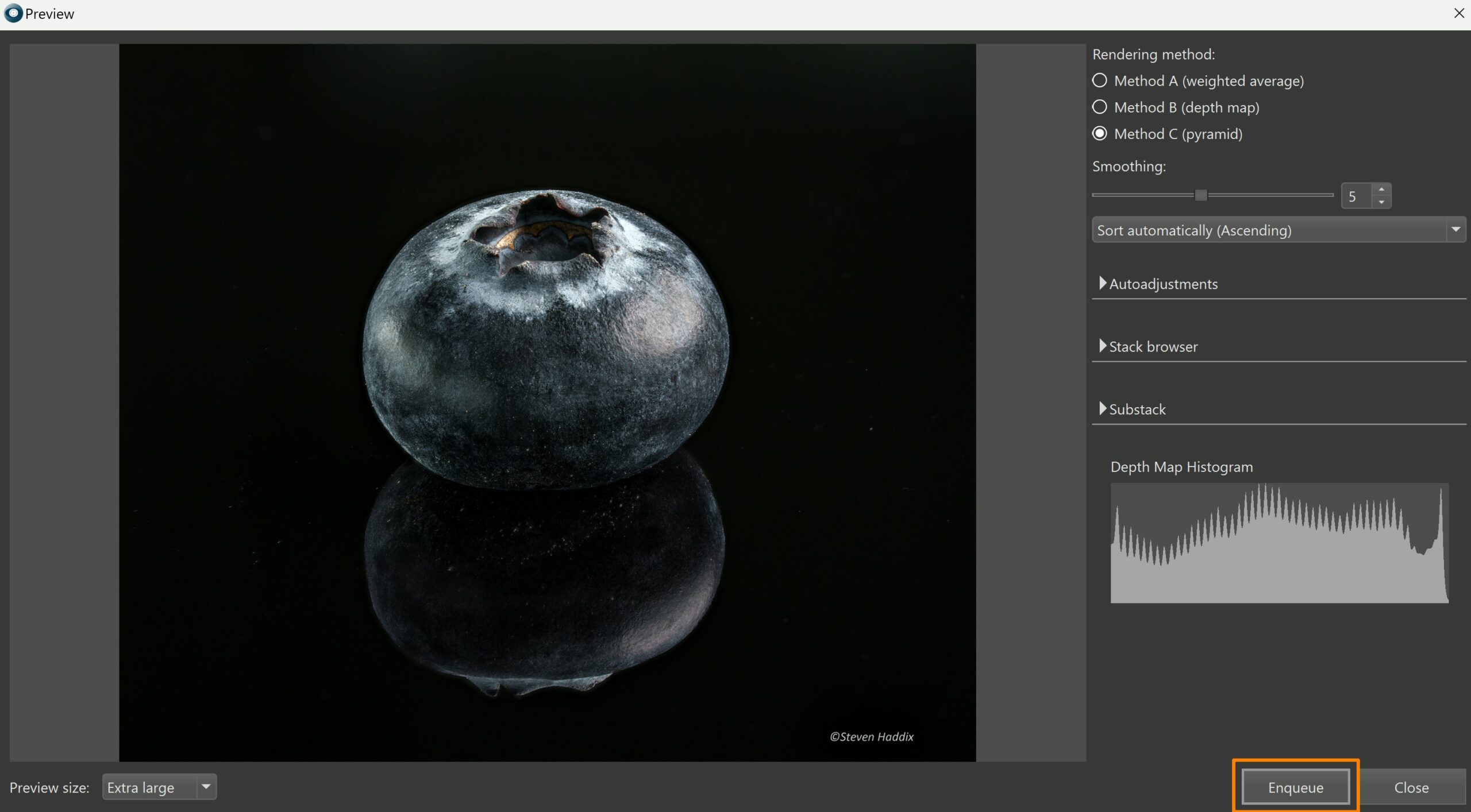
Image copyright © Steven Haddix
This allows continuing adjustment of settings to find the optimal combination while previously queued stacks are queued for further rendering once Preview window is closed.
Image copyright © Ben Salb
Outputs can now be stacked again to create a new image without saving and reopening.
The stack may be processed with different methods (e.g. B and C), and the resulting images can be merged: select several outputs with Ctrl/Cmd, right-click on one of them and select Stack Outputs option.
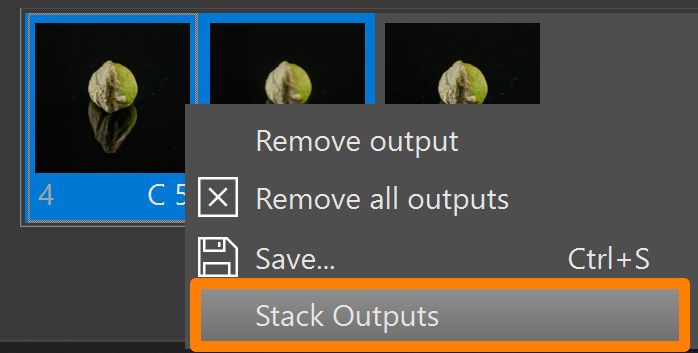
Image copyright © Steven Haddix
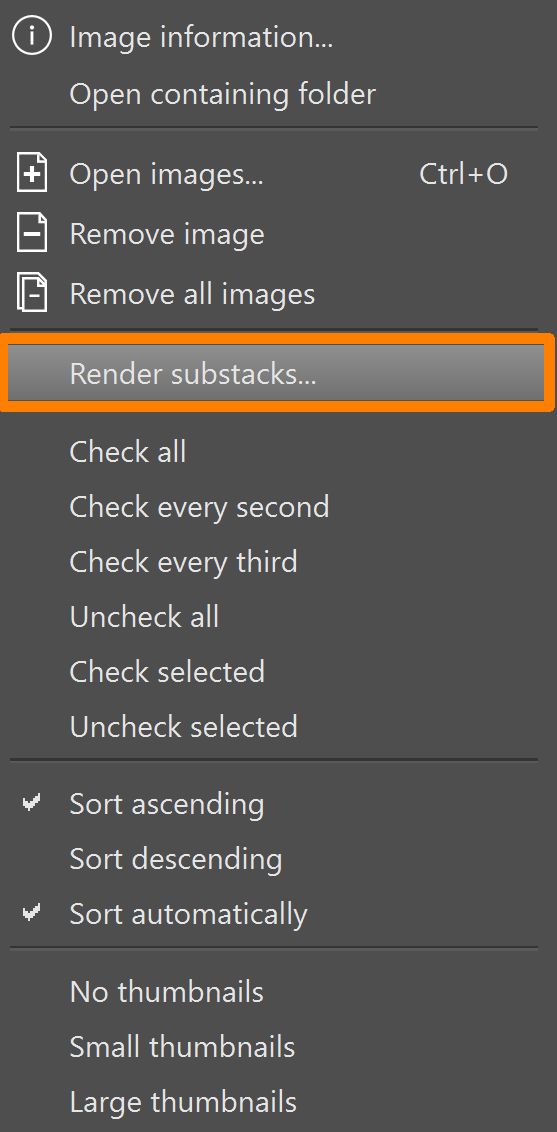
A Substack Rendering dialog has been added to the source images context menu and is available via right-click in the Source Images panel → Render substacks.
The dialog allows setting the number of images per substack and the number of overlapping images between adjacent substacks (if required).
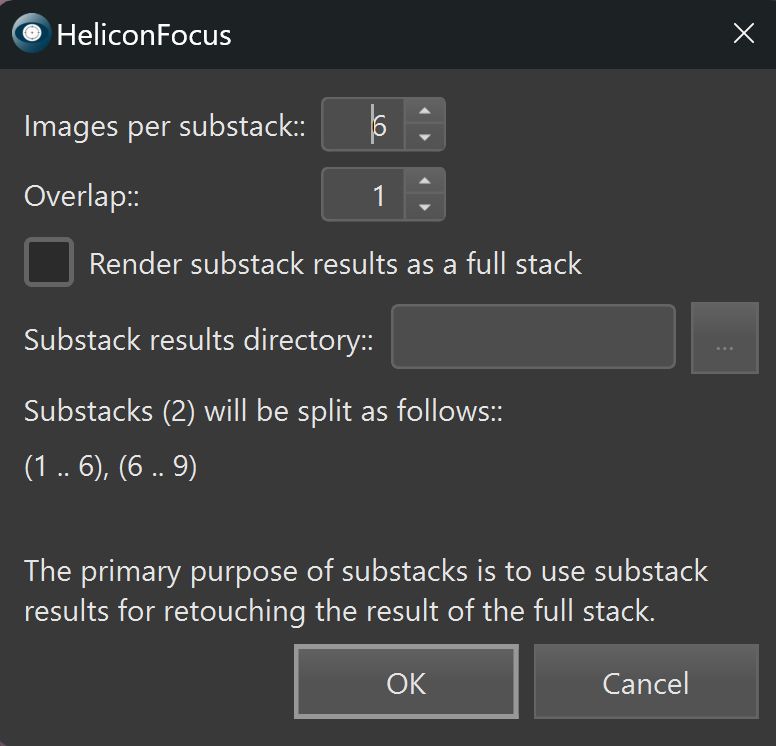
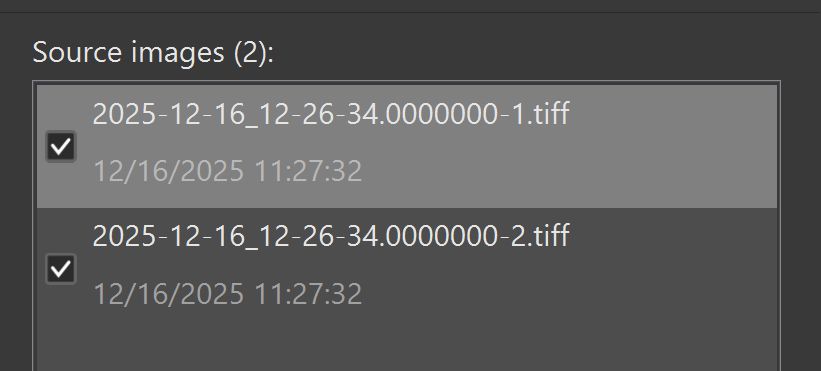
The Render substack results as a full stack option allows queuing a render of all substack results as a single stack. In this case the destination folder where substack rendering results will be saved should be set up. The save format is .tiff.
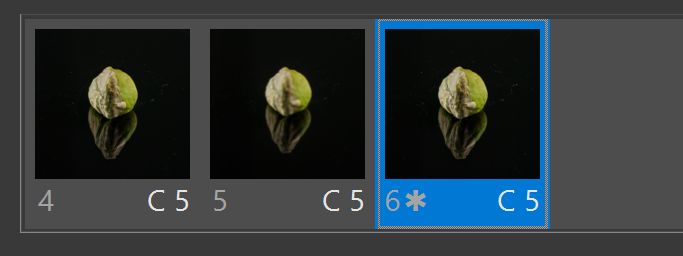
In the Output panel, unsaved results are marked with an asterisk (*).
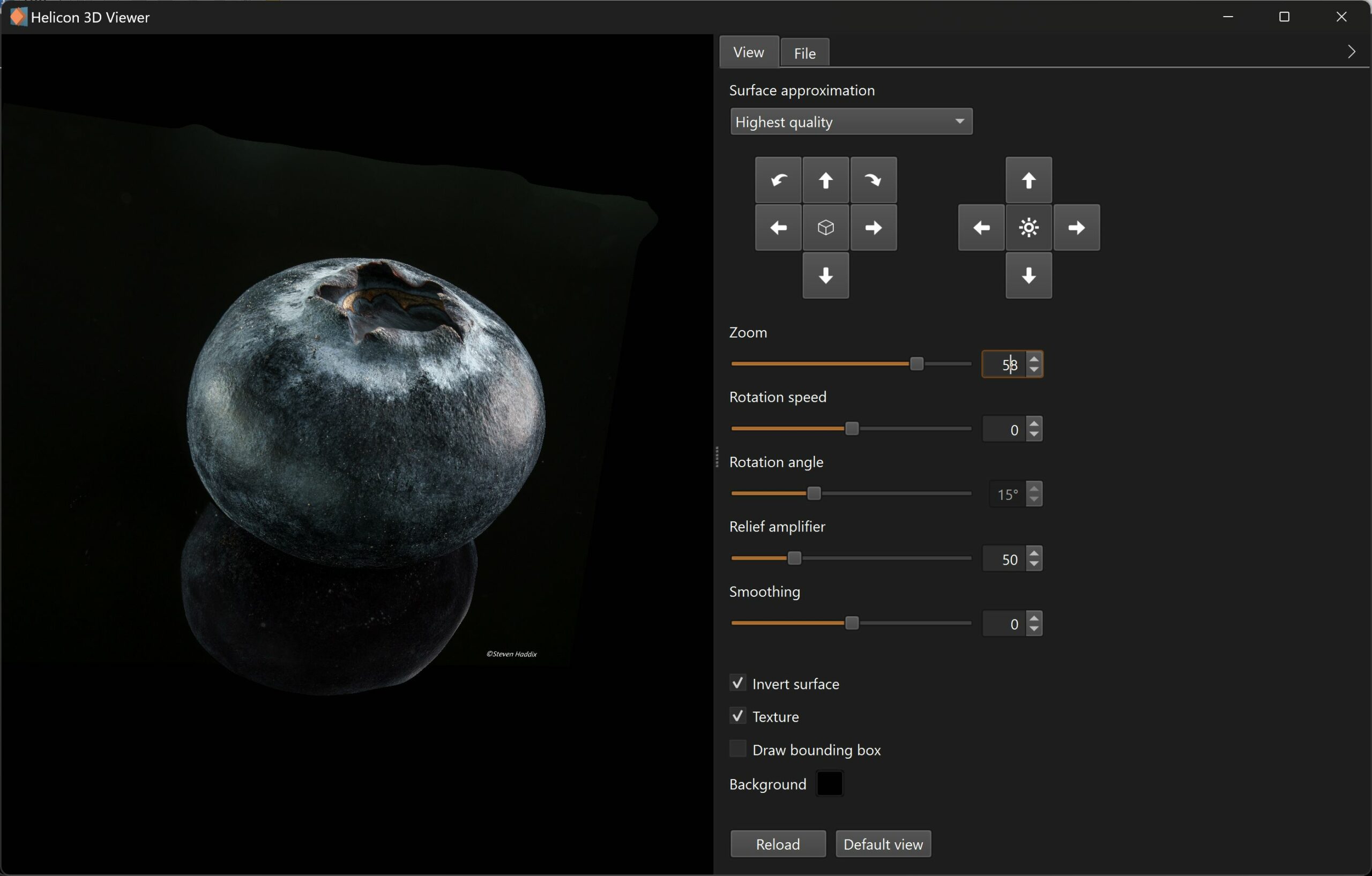
This functionality is primarily intended to simplify retouching when working with long stacks.
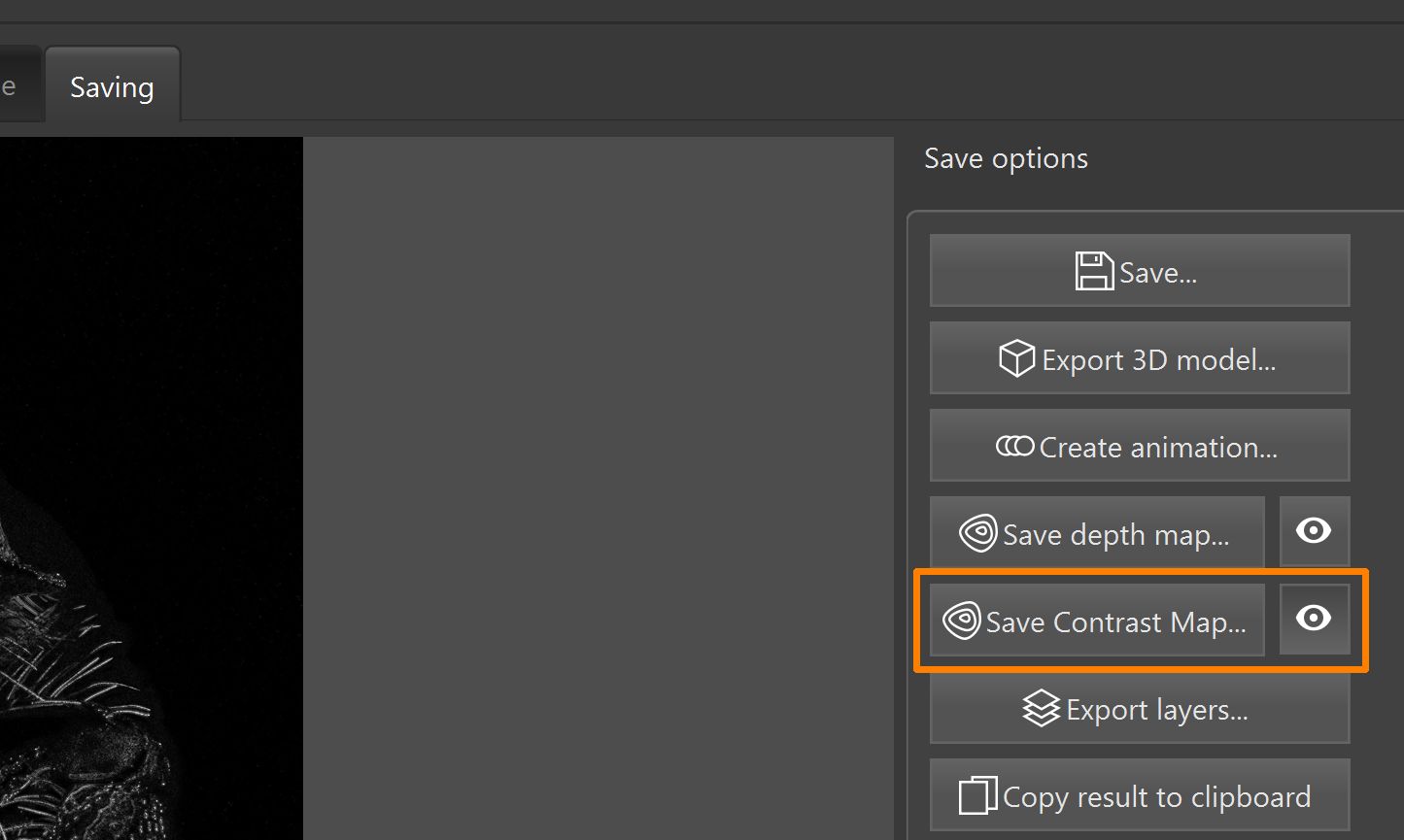
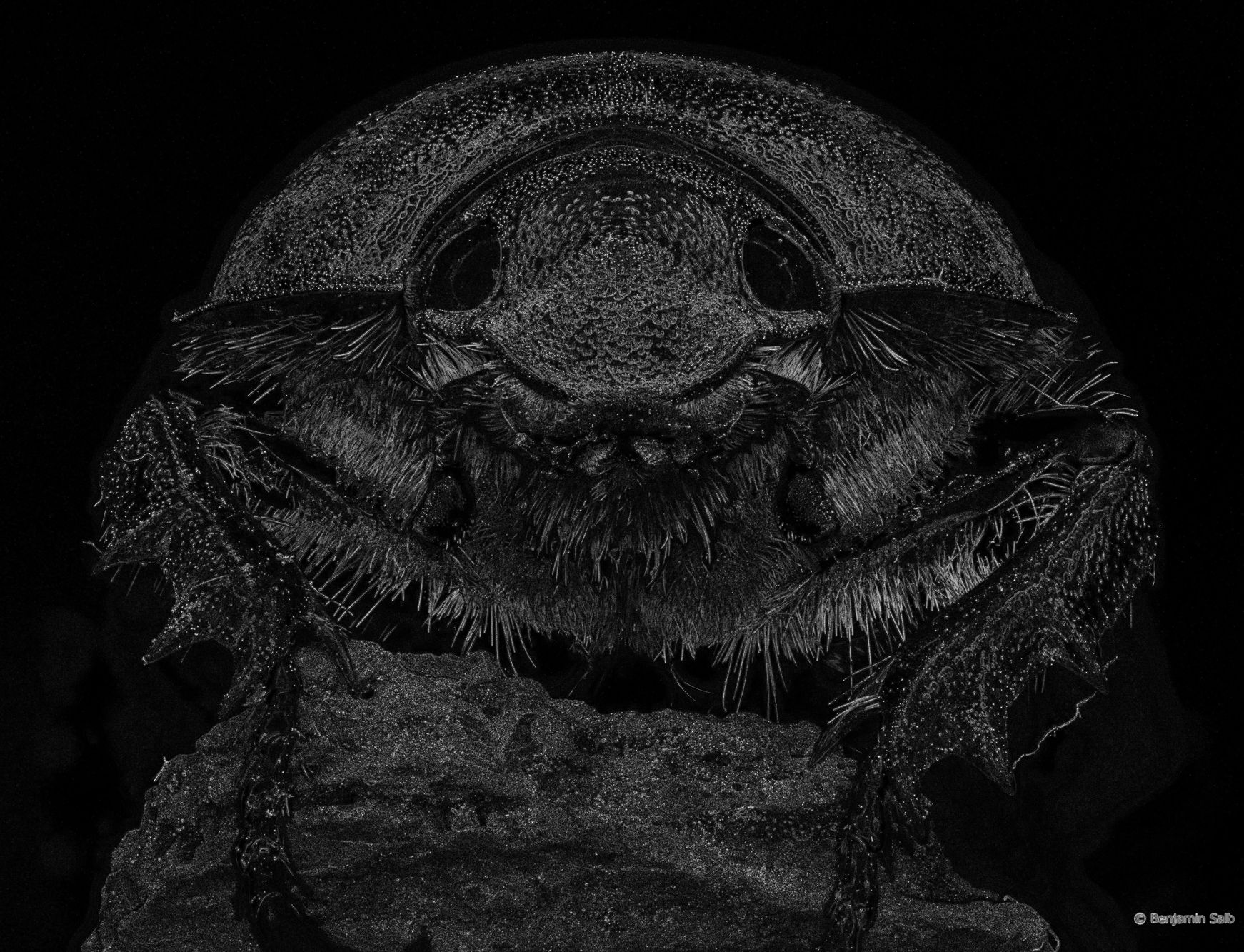
The B&W contrast map, visible while rendering, can now be saved. This map highlights the edges and sharp details in the stack and can be exported for analysis, documentation, or sharing.
The Save Contrast Map option is available on the Saving tab.