Adding frames
To make your images look even nicer we offer five types of frames and some effects, let's take a look at them.
Artistic Frames
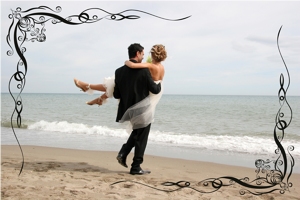
Those frames are probably most interesting. Helicon Filter is shipped with a few artistic frames, but you can download more free frames from our web site.
The Classic Frames Samples
 |
 |
The Love Frames Samples
 |
 |
The Grange Frames
 |
 |
The Ornamental Frames
 |
 |
The Postcard Frames
 |
 |
The Wooden Frames
 |
 |
Original Image (Stretch) Frames
Stretched original as a background |
Stretched original as a background |


Original Image (Mirror) Frames
Mirrored original as a background |
Mirrored original as a background |
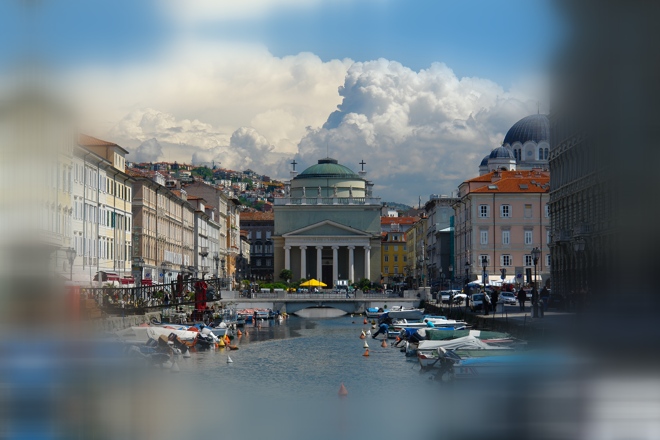
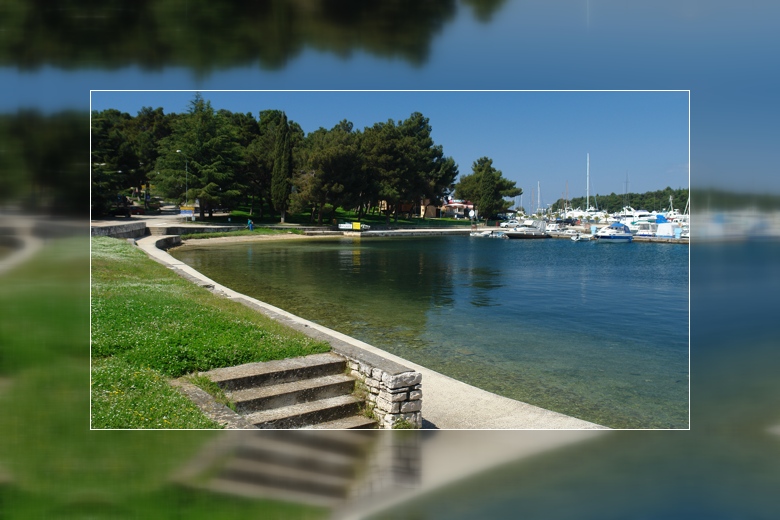
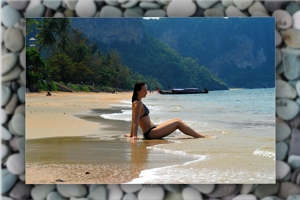
Custom Background Frames
 |
_hf.jpg) |
Gradient color frames
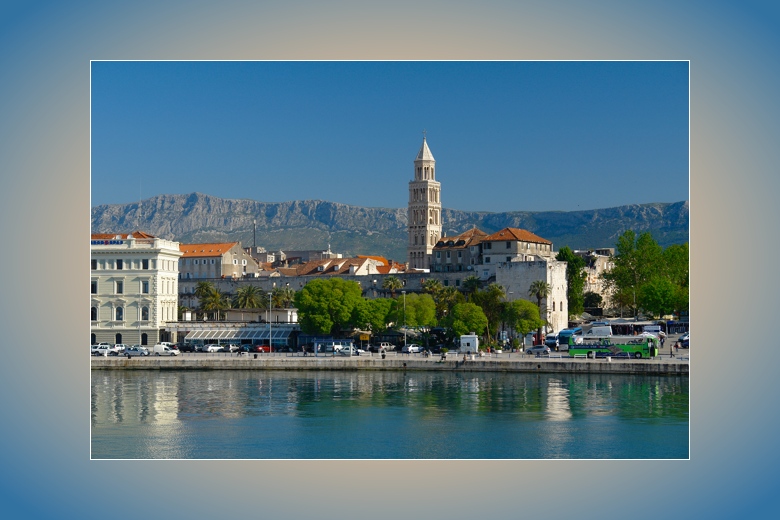 |
 |
Frame type and size
TheFrame type is the most influential parameter, it defines what the frame will be like:
|
 |
|
 |
|
 |
|
 |
|
 |
|
 |
The determines the width of the frame for all or for each of four sides of the image.
The Aspect control allows you to set the proprotions for the resulting image. For expample, you need the result to have 2:3 aspect ratio, even if the source image is square.
Frame effects
Depending on the frame type, this group of parameters contains controls to set various effects.
The Color controls let you define the colors for the solid color, gradient frames. They also define colors for the artistic frame if it is possible.
The Image control shows background or artistic frame that is used for the frame. The button on the right side of the image allows you to select different images from standard or last used folder.
The Brightness slider changes the brightness of the frame background.
The Additional effect control applies blurring or desaturation to the background image.
Image effects
These controls affect the transition between the image and the background.
The Effect type select allows you to add such effects as shadow, highlight or different types of transition between image and background.
The Effect width defines the size of the effect, i.e. width of shadow or transition area.
The Inner frame control allows you to add rectangle of specified type around the image.